
How to Change an Invoice's Payment Status
See how to mark a document as paid in Wrapp: the red dot flags unpaid documents, and one click sets the document as paid.
Every document in Wrapp carries an indicator showing whether it has been paid or not. Here is how to change a document's payment status from unpaid to paid.
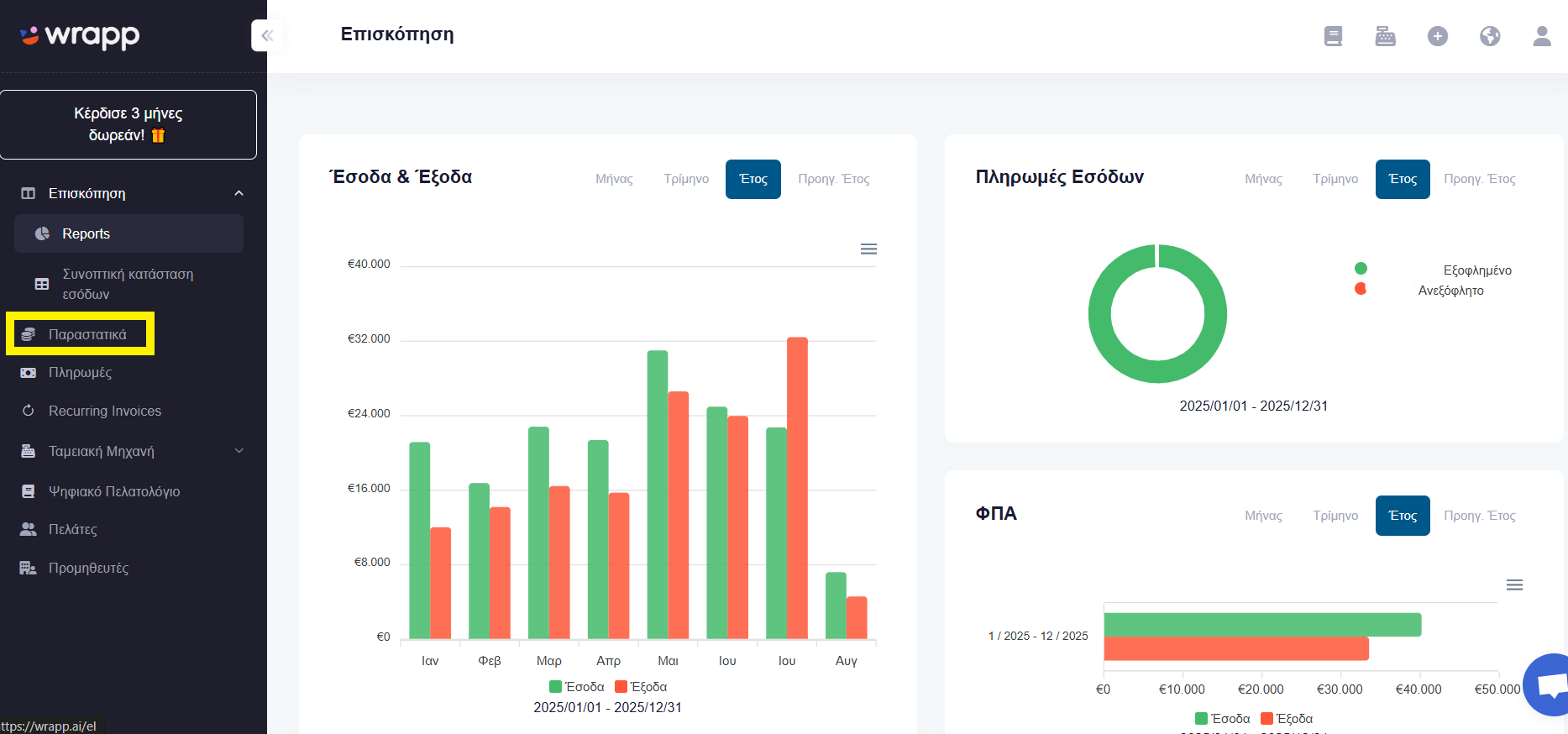
Step 1: Open the «Documents» menu
On the left side of your screen you will find the Documents menu.
Step 2: Spot the unpaid document
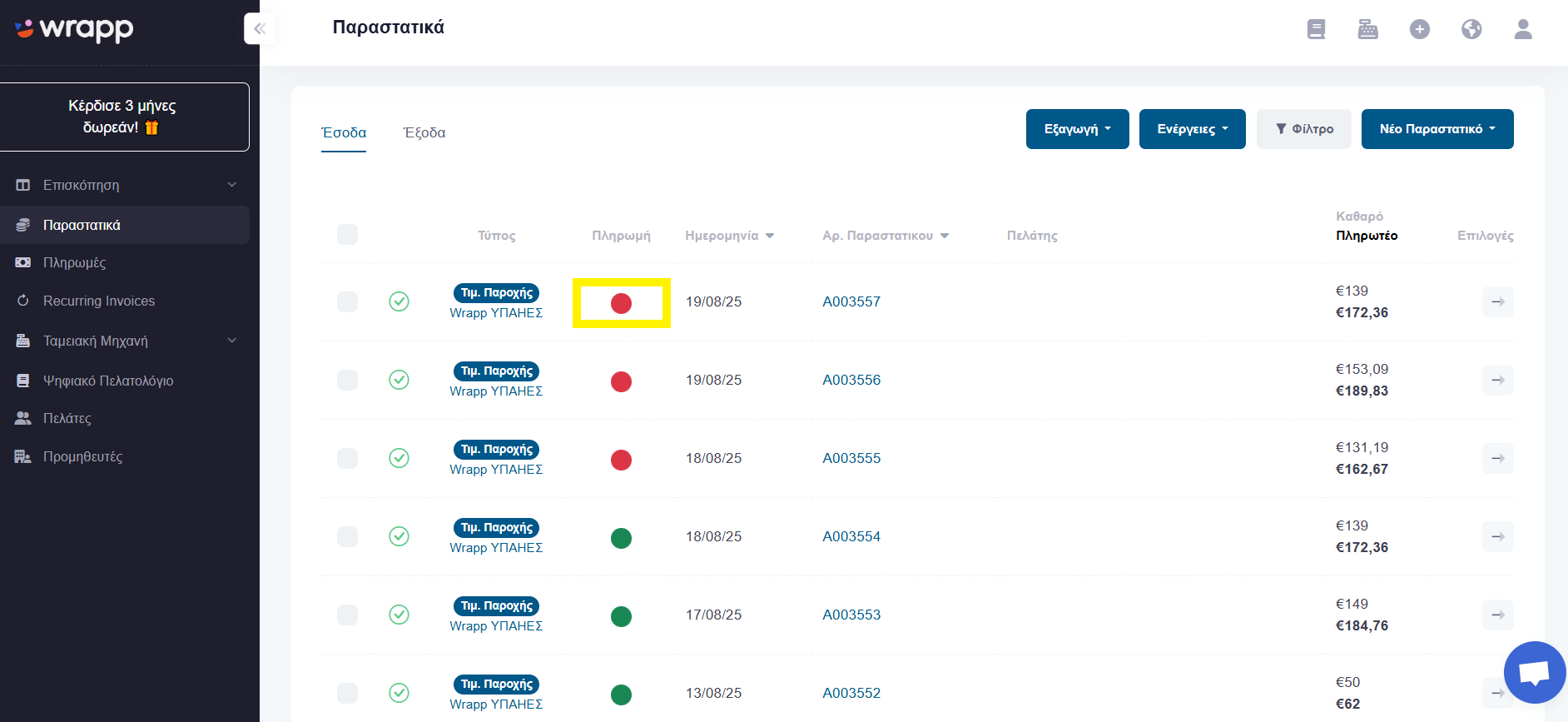
The red dot indicates that a document is unpaid.
Step 3: Mark the document as paid
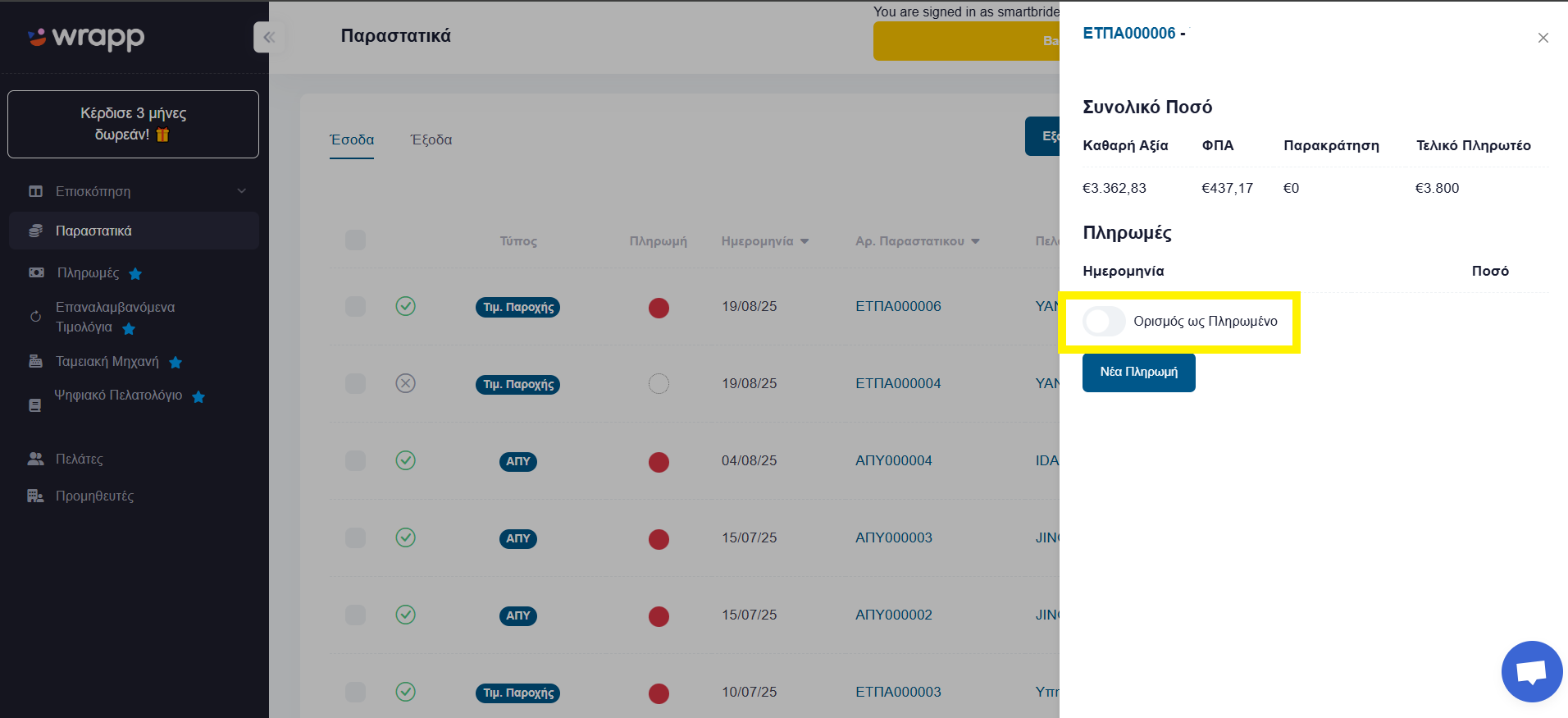
To change it to paid, click on the dot. A panel appears on the right side of the screen where you select «Mark as Paid».
Frequently asked questions
How can I see which invoices are unpaid in Wrapp?
In the Documents list, every unpaid document carries a red dot. You can also use the filters to show only documents with a specific payment status.
How do I mark an invoice as paid?
Click the red dot on the document's row and, in the panel that opens on the right, select «Mark as Paid».
Does marking a document as paid change anything in myDATA?
No. The payment status is internal information for your own collections tracking. The document was already transmitted to myDATA (the Greek tax authority's e-invoicing platform) when it was issued through Wrapp, an AADE-certified provider.
Can I also record a payment with a payment receipt?
Yes. From the Payments menu you can record a new payment against a document and download the payment receipt as a PDF.
Need help?
If you have a question about this topic or want to make sure everything is set up correctly, contact us and we will look at it together.