
How to Bulk-Import Your Products and Services
Add your items one by one or import them in bulk from excel using the product import template.
If your business has many products or services, you do not need to enter them one by one. In Wrapp you can either create each item individually or bulk-import them from an excel file, so they are ready to pick on every invoice you issue.
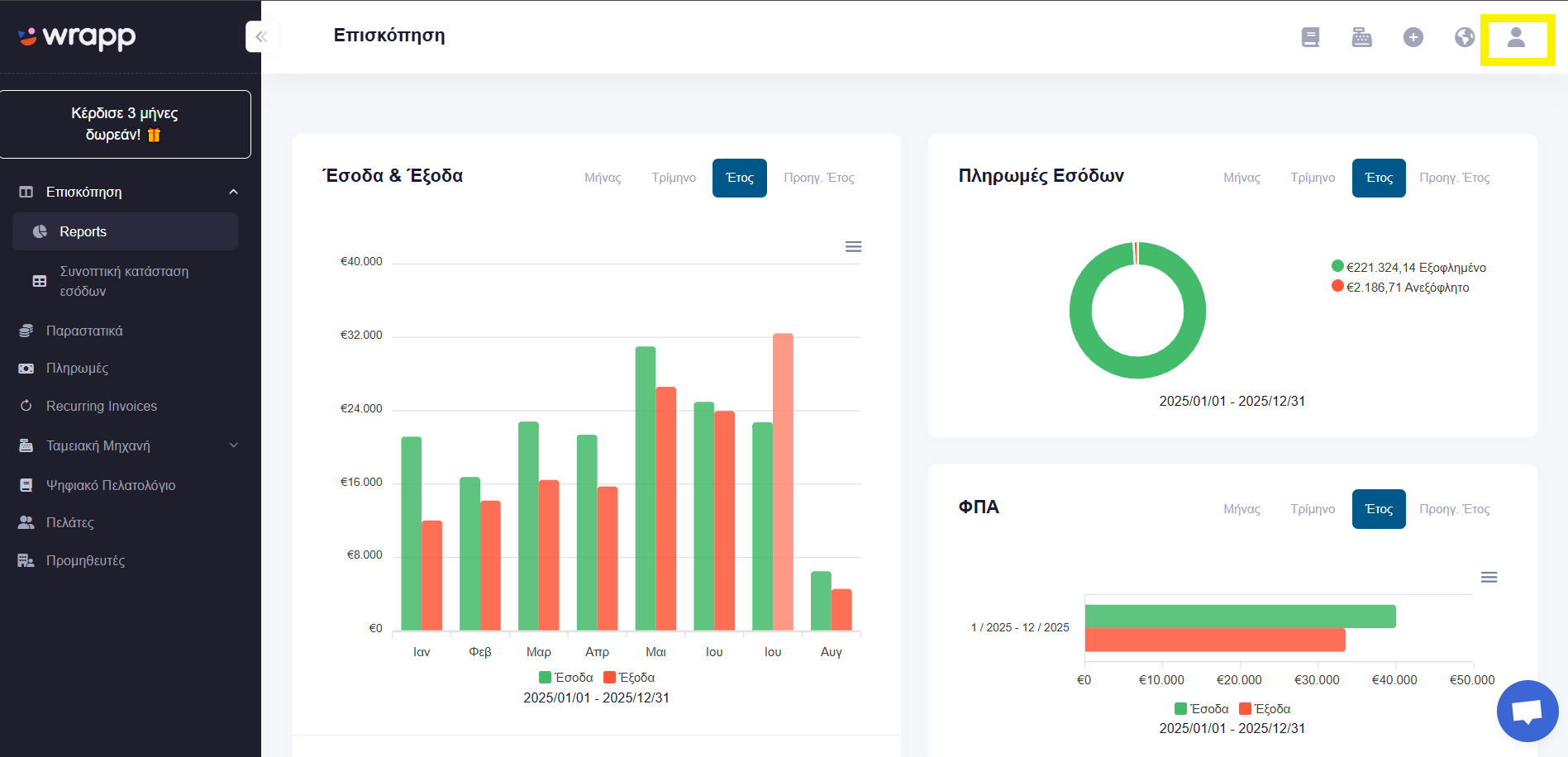
Step 1: Open Settings
From the avatar at the top right, find the Settings menu.
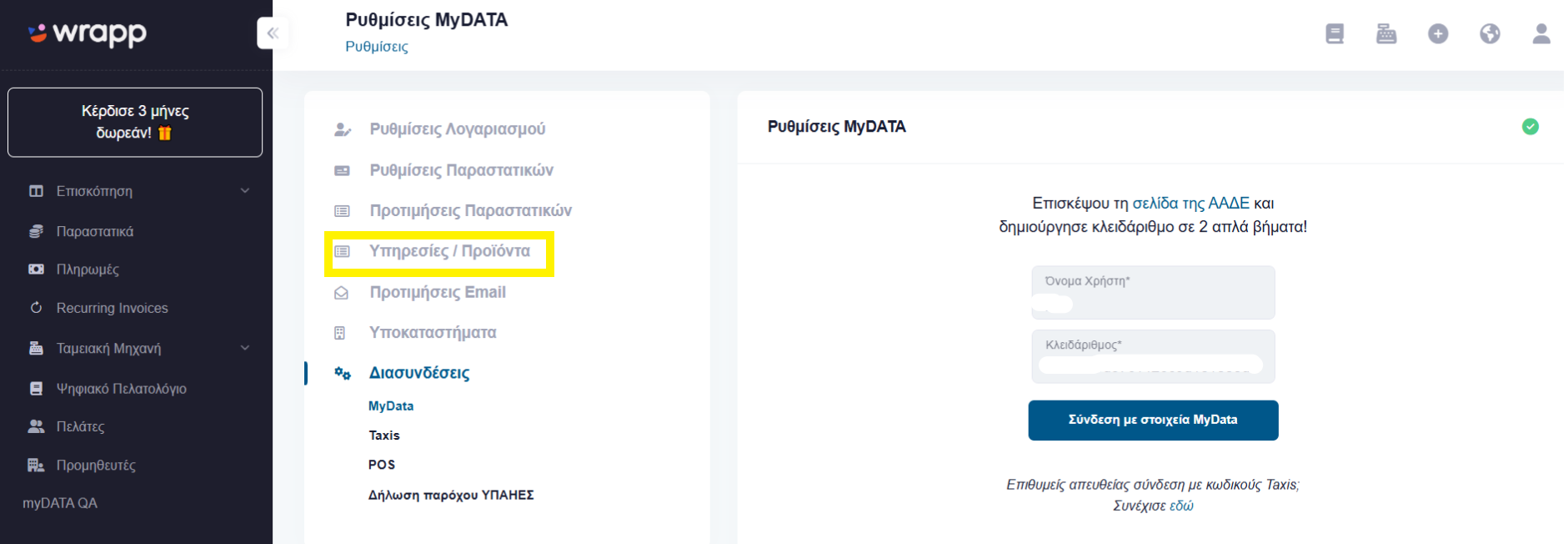
Step 2: Go to the Services/Products category
A list of options appears on the left of your screen. Go to the Services/Products category.
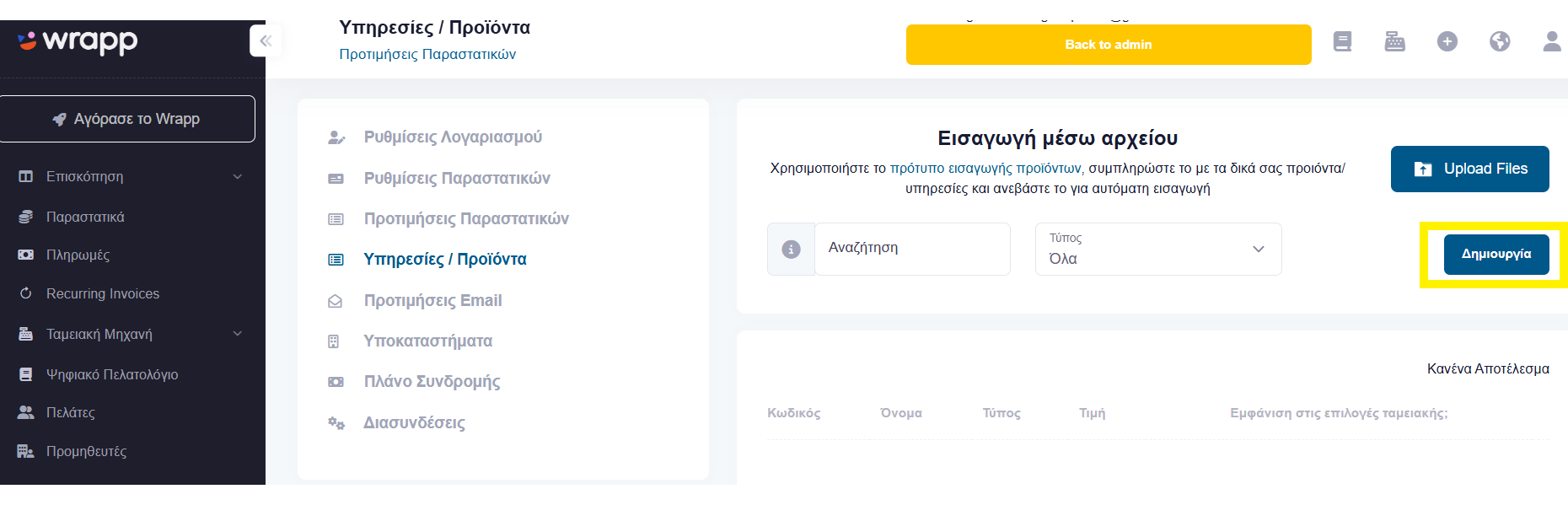
Step 3: Create a new item
To add a product, good or service, choose Create.
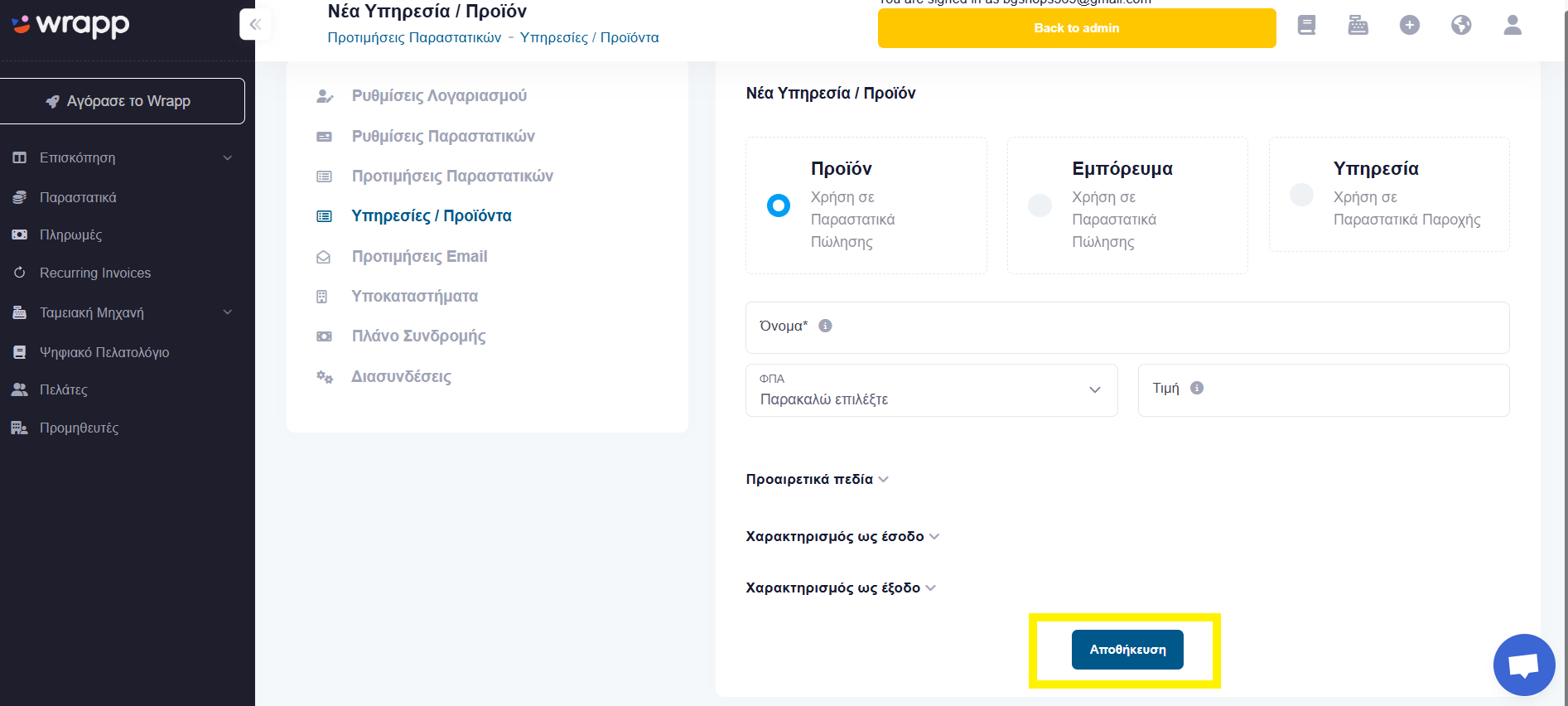
Step 4: Fill in the details and save
Pick the relevant type from the options Product, Good, Service. Fill in the information you want and choose Save.
Note: Fields without an asterisk are optional.
Alternatively: Bulk import from excel
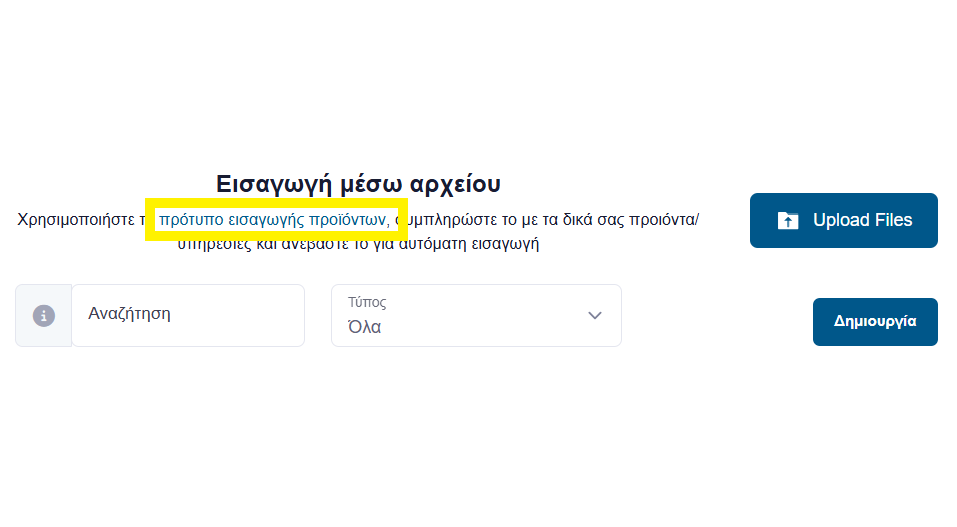
If your products or services are already listed in an excel document and you want to import them in bulk, follow these steps:
- Download the Product import template. This is a blank excel sheet where you transfer your own list.
- Fill in your items in the template's columns.
- To upload the new excel sheet, choose Upload Files.
Frequently asked questions
How do I bulk-import products into Wrapp?
From Settings go to the Services/Products category, download the Product import template, transfer your list into the excel sheet and upload it with Upload Files.
Which fields are mandatory when creating an item?
Only the fields marked with an asterisk are mandatory. You can leave the rest blank and fill them in later.
What is the difference between Product, Good and Service?
These are the three item types the app supports. You pick the type that matches your activity when creating an item, so each invoice line carries the correct classification for myDATA, the e-invoicing platform of the Greek tax authority (AADE).
Why should I register my items in the invoicing app?
With saved items, issuing invoices is much faster: you pick the item and the description, price and VAT fill in automatically. Wrapp, an AADE-certified e-invoicing provider, then transmits the invoice to myDATA automatically.
Need help?
If you have a question about this topic or want to make sure everything is set up correctly, contact us and we will look at it together.